Importing Information into Your Brain
Importing Folders and Mind Maps
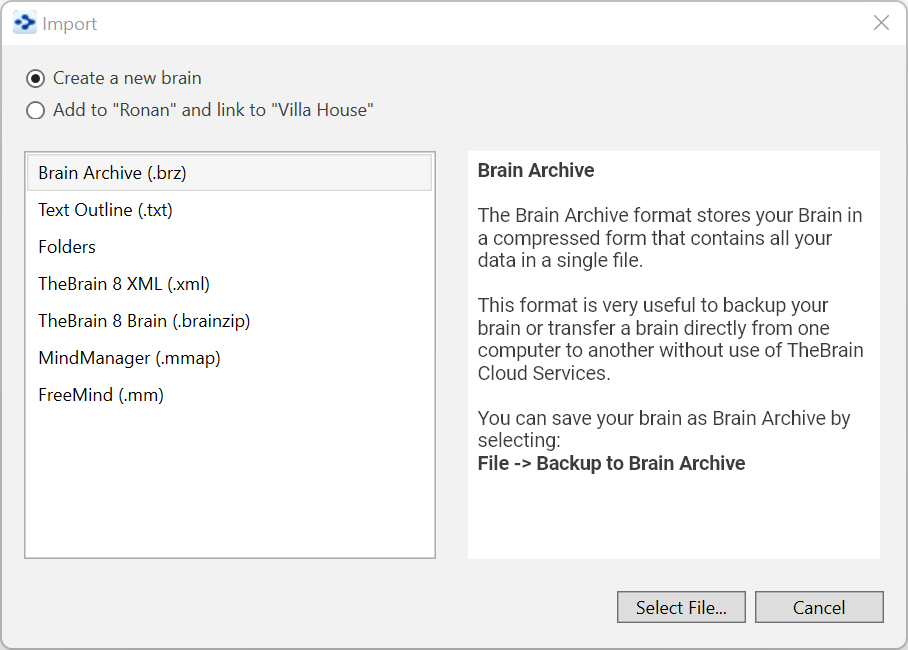
Figure 313. Importing Folders and Mind Maps
You can import folders and Mind Maps into your brain. When you import a folder, it becomes a child thought of the active thought.
To Begin Importing:
Activate the thought that will receive the imported information.
Click the File menu, then click the Import command.
For a Folder:
- ClickFolders, select the Add to … button, click the Select Folder button, navigate to the folder of your choice, then click the OK button. Click the Import button as soon as it becomes available. Click the next Import button to confirm that you understand this import can’t be undone. Each folder will become a thought, every file inside the folder will become and attachment, and any subfolders will become child thoughts.
For a Mind Map:
- ClickMindManager (.mmap), select the Add to … button, click the Select File button, navigate to the file of your choice, then click the Open button. Each of the topics or ideas will become a separate child thought of the active
thought.
Importing TheBrain 8 XMLs
Version 8 brains that have been exported into an XML format (or properly-formatted XML that has been generated outside of TheBrain) can easily be
imported back into another brain as a child of the active thought.
Activate the thought that will receive the imported XML.
Click the File menu, click the Import command, then select the Add to …
button.
- Click TheBrain 8 XML, click the Select File button, navigate to the file of your choice, then click the Open button.
Merging Brains
You can merge two brains together by importing a Brain Archive file (.BRZ):
Open the brain that you want to merge into another brain, click the File menu, then click the Backup to Brain Archive command.
Note the location for the new .BRZ file, then click Backup.
Open the brain that will receive the merged brain, navigate to the thought where you want the .BRZ file to be added as a child, click the File menu, then click the Import command.
Select the Add to “open brain name” and link to “active thought name” option, then click Brain Archive (brz) in the list.
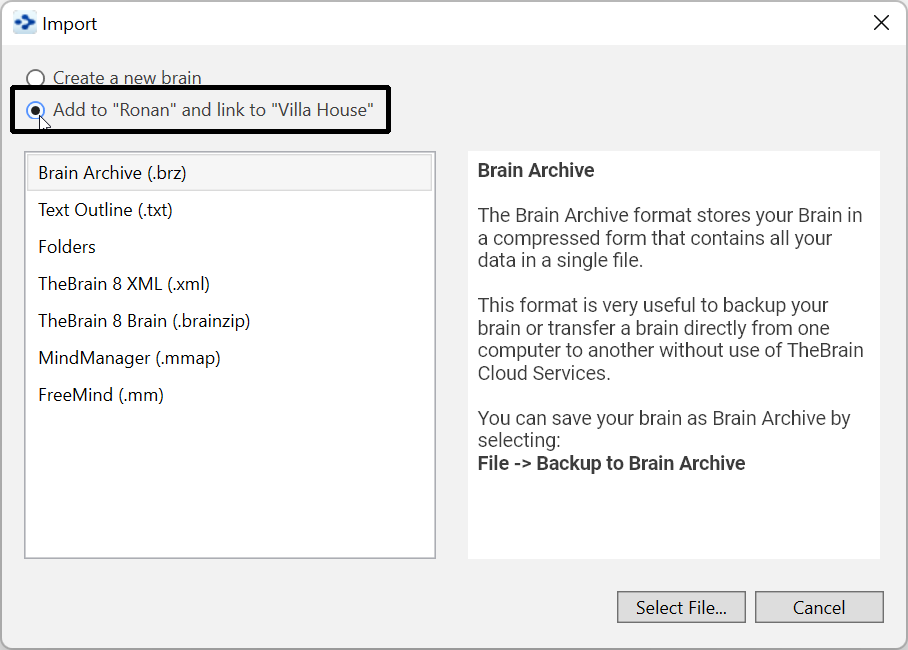
Figure 314. Merging Brains
- Click the Select File button, then navigate to and open the initial .BRZ file you created in the first step. Click the Import button. You will be prompted
to confirm that you want to continue, since importing a .BRZ file can’t be undone.

The only brain that is changed is the one that is open when you begin the merge procedure. The brain you select during step 1 is not changed at all.