Advanced Navigation and Alternative Views
Changing Your View of Thoughts

There are three views for displaying your thoughts:
- Normal view: For focusing on the active thought and displaying information
pertaining to its parent thoughts above, child thoughts below, and jump
thoughts to the left.
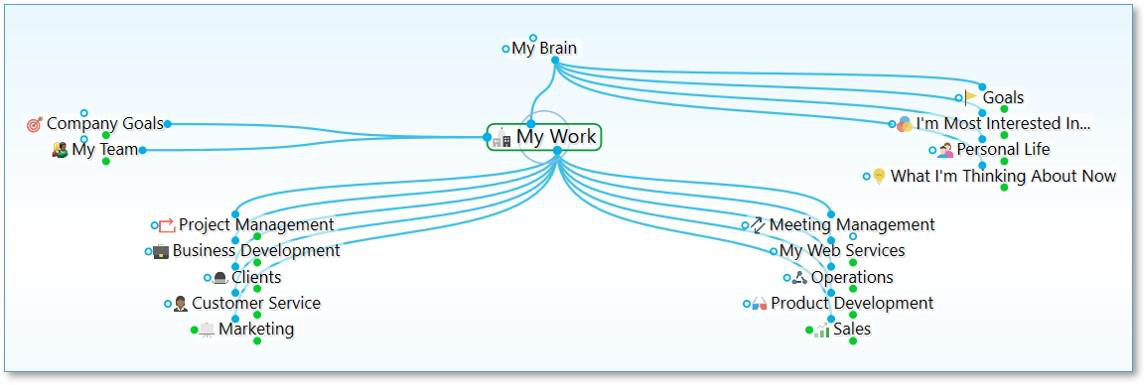
Figure 178. A Brain in Normal View
- Outline view: For a more expanded, primarily hierarchical view of your
thoughts.
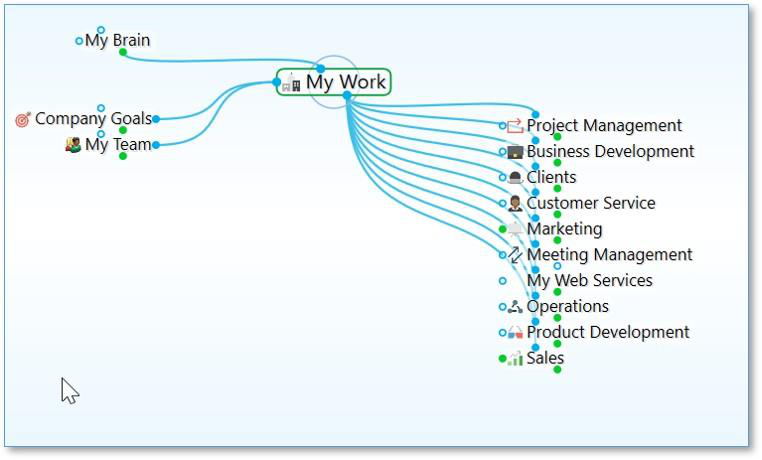
Figure 179. A Brain in Outline View
- Mind Map view: For a horizontally expanding symmetrical layout.
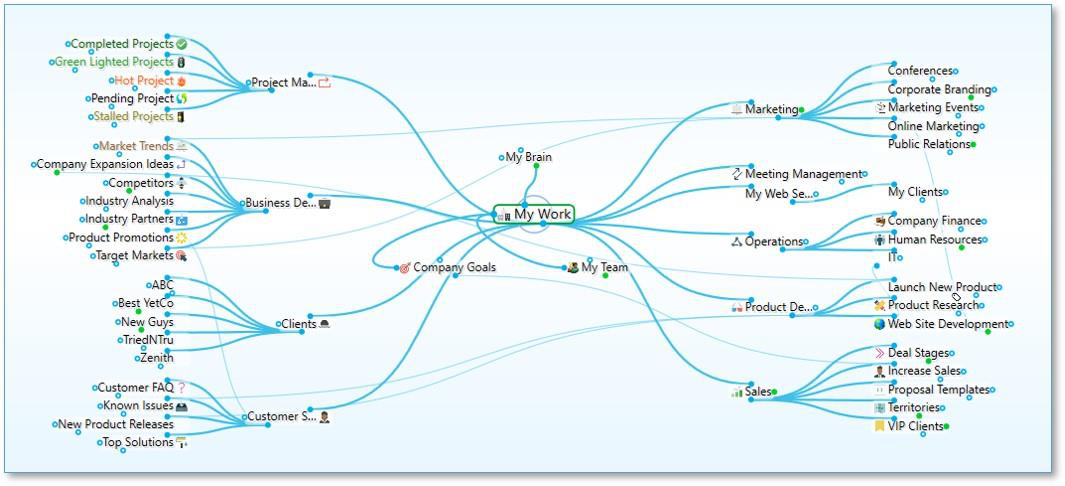
Figure 180. A Brain in Mind Map View and Expanded

In addition to selecting a view, you can expand and collapse the display of thoughts in all views to show more or fewer generations.
TheBrain automatically remembers the last view you used and selects it by default. For example, if you select Outline view and then close TheBrain, the next time you open it, Outline view will be active.
Three ways to change to a different view:
- Click the Layout button in TheBrain toolbar, then click the view of your choice, or
Right-click in the plex, click the Layout command, then click the view of your -
choice, or
- Click the View menu in the menu bar, then click the view of your choice
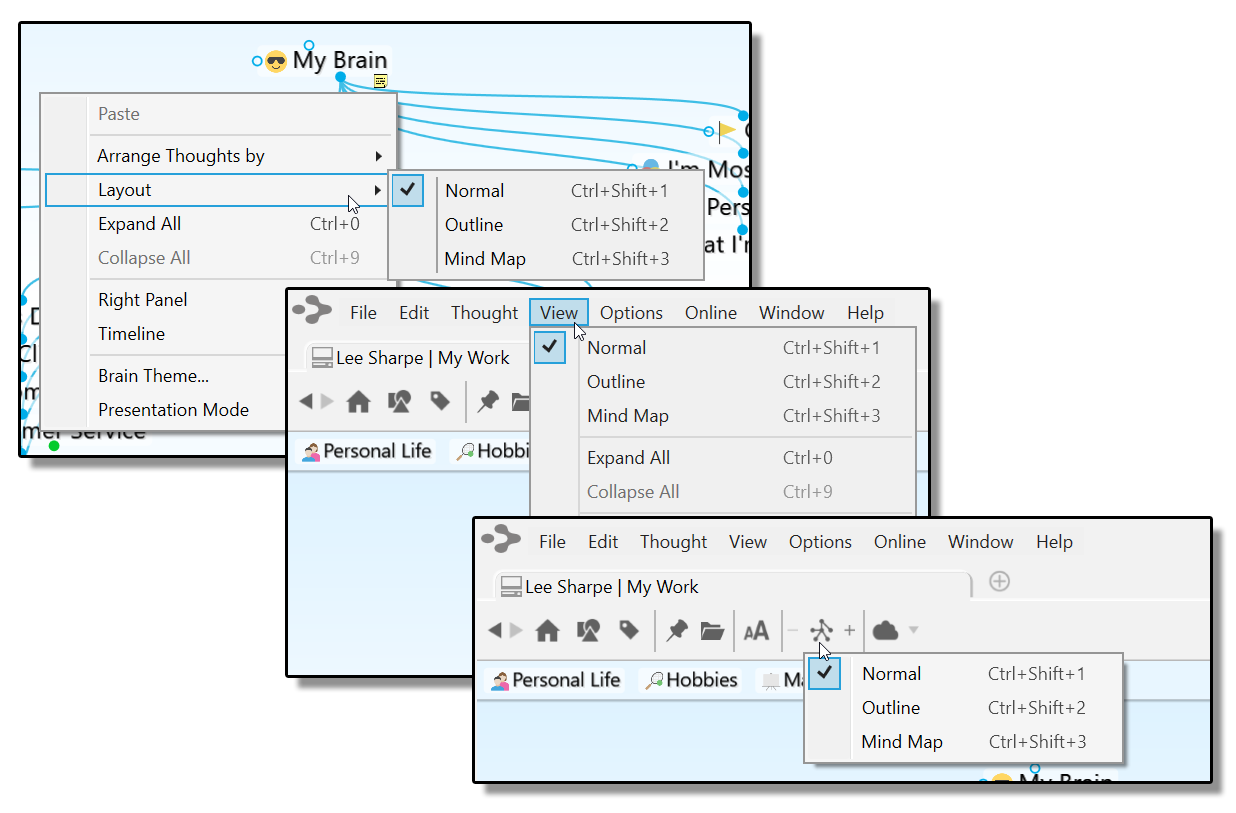
Figure 181. Three Ways to Select a View

Tip:
The check mark in the menu identifies the current view.
A rule of thumb for when you might use each view is to use Normal view when
you’re creating thoughts and navigating the plex, use Outline view when you
want to see a more traditional structure, and to use Mind Map view for viewing
and analyzing the “big picture.”
Using Outline View
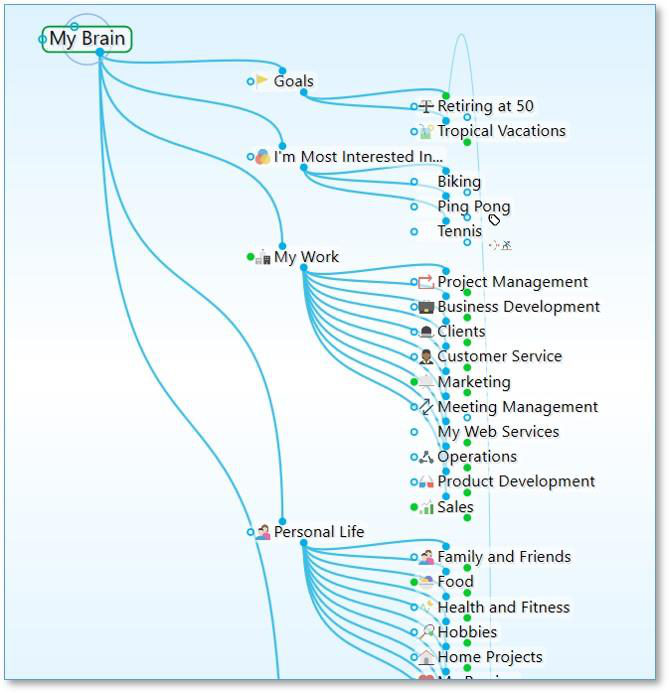
Figure 182. Plex in Outline View
Providing a clean, organized way of looking at your thoughts, Outline view enables a fast, easily understood overview of the active area of your thought network. The level of detail can go as deep as you want while maintaining an ordered view.
When the plex is in Outline view, you can show or hide generations of children for individual thoughts. To see if a thought has child thoughts that aren’t currently showing, point the mouse at the thought.
On mouseover, a plus sign (+) icon will appear above the top edge of the thought’s outline if there are child generations to display. Click the + icon to expand and show that thought’s children.
On mouseover, a minus sign (-) icon will appear below the bottom edge of the thoughts’ outline if child thoughts can be collapsed or hidden. Click the - icon to hide that thought’s children.
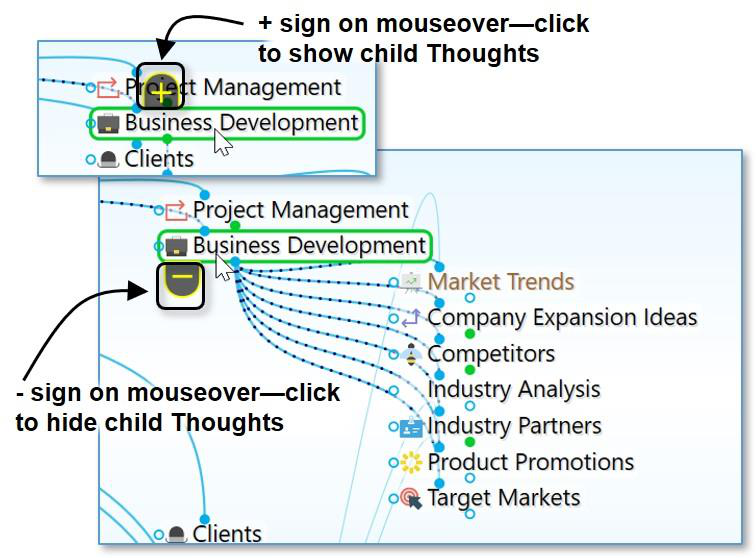
Figure 183. Showing/Hiding Additional Generations of Individual Thoughts
Using Mind Map View
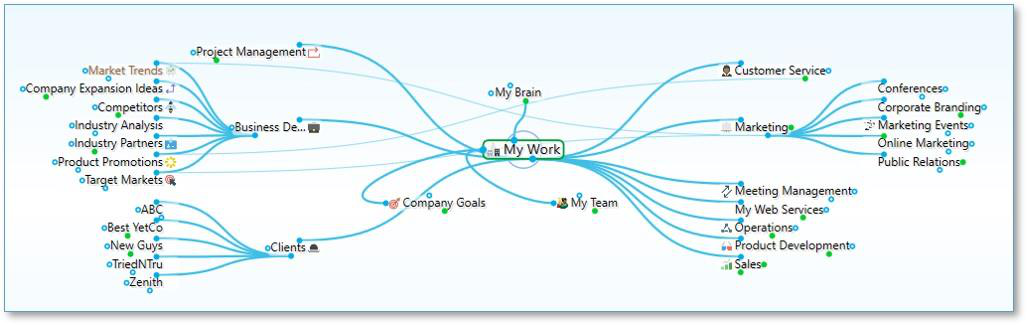
Figure 184. Mind Map View
The Mind Map view allows switching the focused thought without changing the layout for when you want to view and alter various pieces of content while keeping the view mostly static. Traditional mind map layouts can be created instantly from any thought.
To navigate to another thought in your plex while in Mind Map view, right-click the desired thought and select Activate Thought.
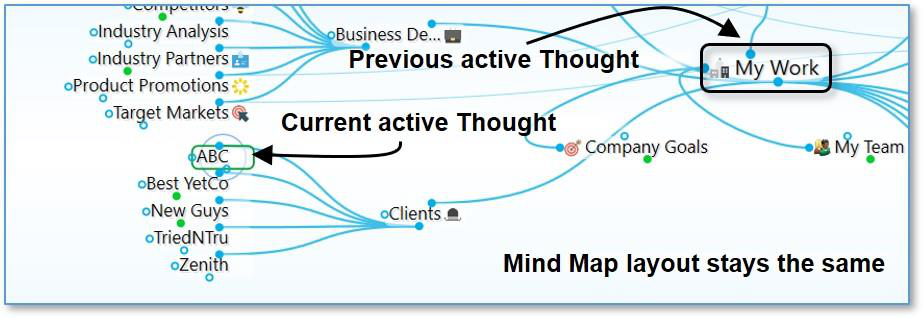
Figure 185. Changing the Active Thought without Changing the Layout
As with Outline view, when the plex is in Mind Map view, you can show or hide
generations of children for individual thoughts by pointing the mouse at a thought, then clicking the plus sign (+) or minus sign (-) icon to show or hide the thought’s children.
Expanding and Collapsing Generations
Besides expanding and collapsing individual thoughts in Outline view or Mind Map view, as explained in the previous section, you can also expand and collapse generations of all thoughts in all views.
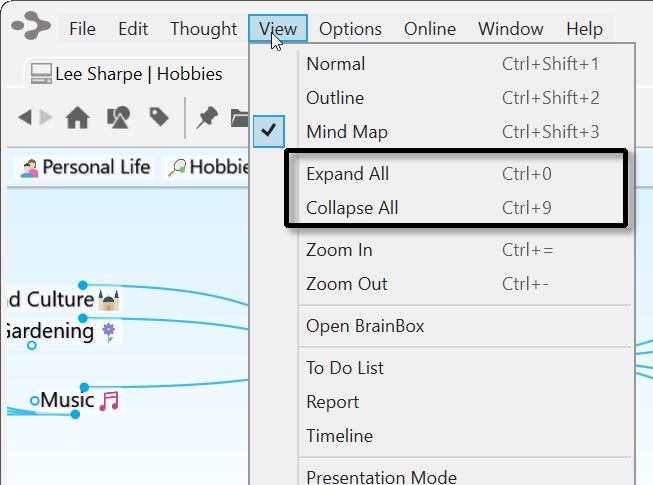
Figure 186. Expanding or Collapsing from the View Menu
In Outline and Mind Map view, you can also use the buttons on the toolbar to expand or collapse all visible thoughts by one generation.
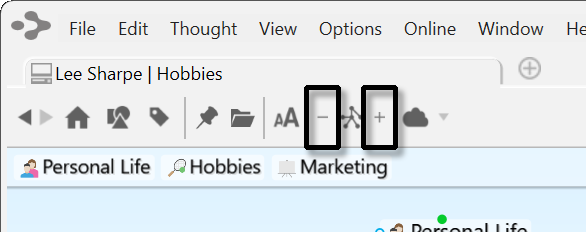
Figure 187. Expanding or Collapsing by One Generation
work the same way as the
Expand All
and
Collapse All
commands on the
View menu.
In Normal view, the Expand and Collapse by one generation on the toolbar
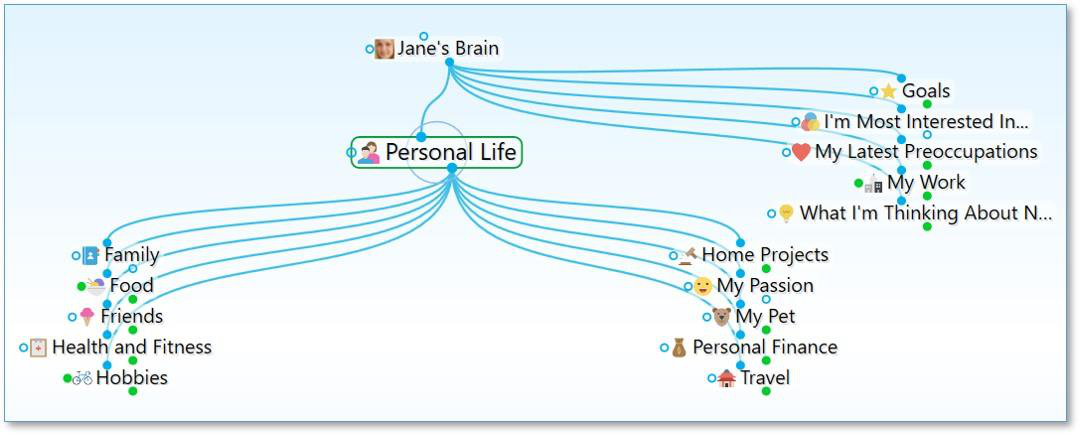
Figure 188. Jane’s Brain in Normal View with All Collapsed
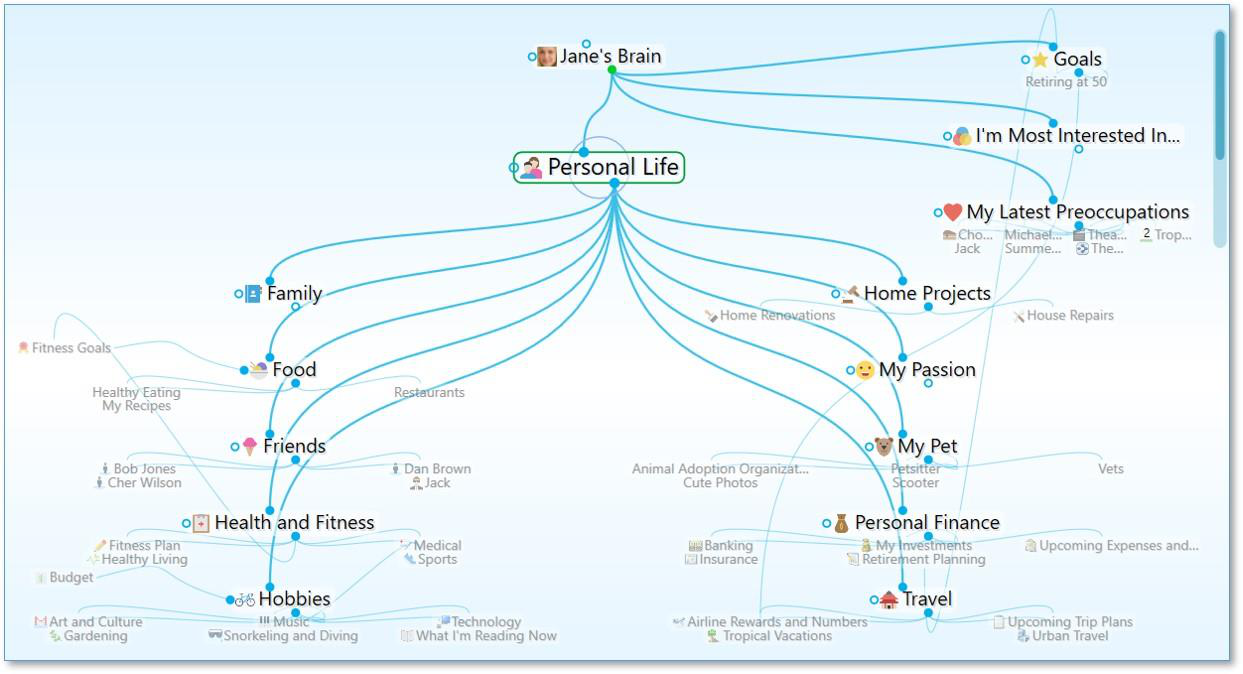
Figure 189. Jane’s Brain in Normal View after Expanding All
Tip:
The vertical scroll bar on the right side of the plex indicates that there are
more sibling thoughts in that area which are not currently visible.
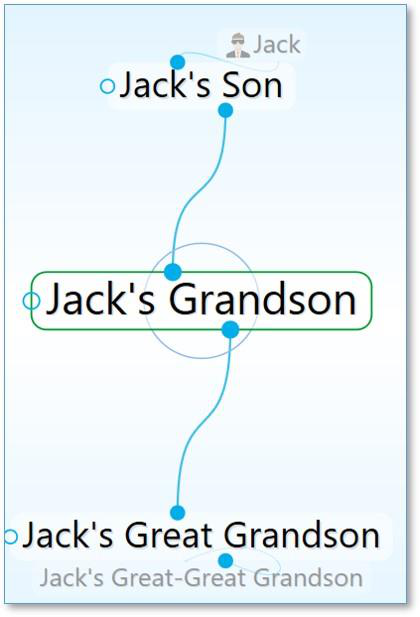
Figure 190. 5 Generations of Thoughts
Presentation Mode
Presentation Mode makes your brain full-screen, hiding the title bar, menu bar, toolbar and Brain tabs. On both Windows and macOS the taskbar and dock are also hidden. Presentation mode is an excellent viewing option when using your brain for effective and focused discussions.
Enter Presentation Mode by selecting it from the View menu
Keyboard shortcuts can be used for functionality that is hidden from the current view, such as switching amongst open Brain tabs without exiting Presentation Mode
Just start typing to search and the controls appear and disappear as needed
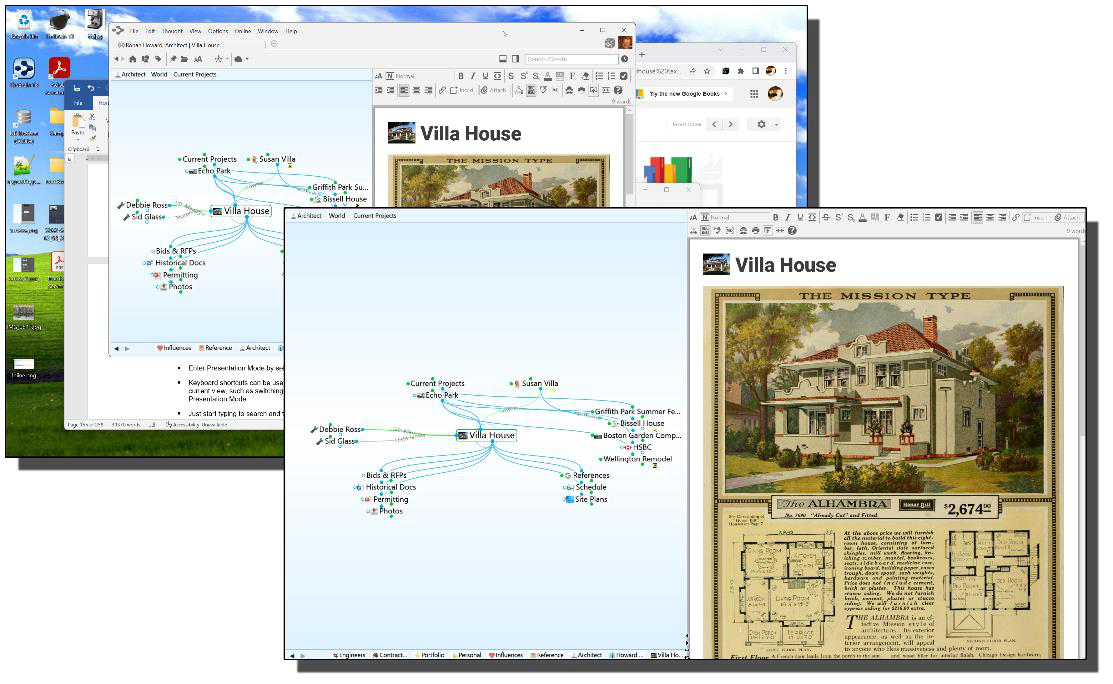
Figure 191. Before and after switching to Presentation Mode